> For the complete documentation index, see [llms.txt](https://docs.arcticcheats.wtf/llms.txt). Markdown versions of documentation pages are available by appending `.md` to page URLs; this page is available as [Markdown](https://docs.arcticcheats.wtf/product-guides/select-your-game/apex-legends/hydra.md).
# Hydra
Welcome to the **Hydra Cheat Setup Guide**.\
This guide is divided into easy-to-follow sections to ensure a smooth and successful setup.
Buy Hydra for Apex Legends
{% hint style="warning" %}
Please follow all instructions carefully. Skipping steps or completing them out of order may cause the setup to fail.
{% endhint %}
{% hint style="success" %}
**Don't be blatant!** Using obvious feature will increase the likelihood of a ban. For the safest experience, stick to ESP only and use more obvious features only on occasion.
{% endhint %}
***
{% stepper %}
{% step %}
### Getting Started
#### Disable Windows Defender
Why do I need to do this?
You need to disable your antivirus because it can block cheats or loaders from running correctly. Antivirus programs often flag cheat software as malicious because it modifies or injects code into games to enable features like aimbot or ESP which appears abnormal for a file to do. This is a common issue for all game cheats, not just Arctic Cheats. Rest Assured, Arctic Cheats is safe to use.
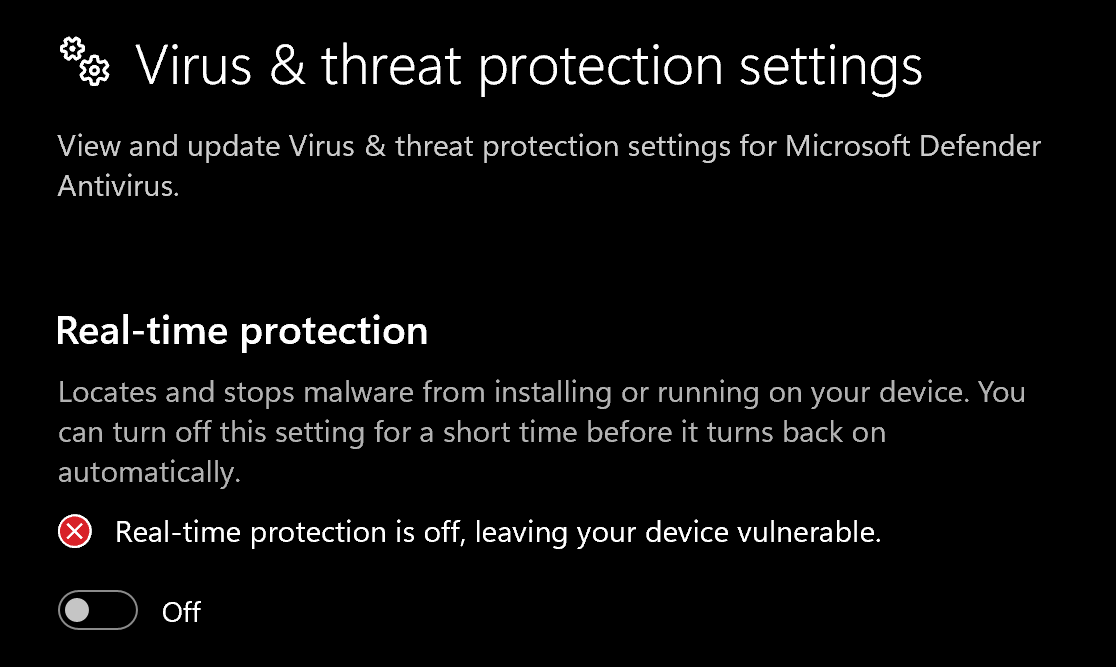
1. Search **Virus & Threat Protection**
2. Disable **all settings**, including real-time protection
> **Recommended**\
> Download and run [**DControl**](https://drive.usercontent.google.com/download?id=1jxmKjN820qP_cLZLgbeBi-aP5DUbROle\&export=download\&authuser=0) to fully disable antivirus protection. You may need to download [Win-Rar](https://win-rar.com/) in order to extract the DControl file.\
> **Password:** `sordum`
#### Remove Other Anti-Cheats
Uninstall the following if installed:
* **FACEIT Anti-Cheat**
* **Vanguard** (Valorant Anti-Cheat)
{% endstep %}
{% step %}
### Download Loader
Download Loader Here
{% endstep %}
{% step %}
### Injection Process
#### Step-by-Step Injection
1. Download and run the **Hydra Loader**
2. You will need to create an account in the loader. *This account is separate from your arcticcheats.wtf login*
3. Select your game
4. Enter your **license key**
5. Click "Start" on the desired game
6. Start the game
7. Press Insert on your keyboard to open and close the menu
{% endstep %}
{% endstepper %}
***
### Common Errors
Please unload vgk.sys
When using Hydra, I keep getting the message "Please unload vgk.sys" How do I fix?
The message requesting you to "unload vgk.sys" indicates a direct conflict with the Riot Vanguard anti-cheat system. The vgk.sys file is a core, kernel-level driver associated with this security software, and it is designed to prevent external applications (like the Hydra loader) from interacting with the system.
To proceed with the Hydra loader, you must completely remove the Riot Vanguard software. Simply closing the associated game will not unload the driver, as it runs at the kernel level.
Here are the detailed, professional steps to fully uninstall Riot Vanguard:
Step 1: Uninstall Riot Vanguard via Windows Settings (Recommended)
This is the standard and most reliable method for removing the application.
Access Apps Settings:
Press the Windows Key on your keyboard, and type "Add or remove programs" (or navigate to Settings > Apps > Installed apps).
Locate and Uninstall:
In the list of installed applications, search for "Riot Vanguard".
Click on the entry (or the three-dot menu next to it) and select Uninstall.
Confirm Uninstallation:
A confirmation prompt will appear. Click Uninstall again, and you may need to grant administrator permission (User Account Control) for the action to complete.
Step 2: Perform a System Reboot
A restart is critical because kernel-level drivers like vgk.sys are only fully unloaded from memory upon a system shutdown and restart.
Restart your PC immediately after the uninstallation process is complete.
Alternative/Manual Cleanup (If Conflict Persists)
If the Hydra loader continues to report the vgk.sys error after the standard uninstall and reboot, a manual removal of the associated services may be necessary.
Open Command Prompt as Administrator:
Press the Windows Key, type cmd.
Right-click on "Command Prompt" and select "Run as administrator."
Execute Service Deletion Commands:
Enter the following commands one at a time, pressing Enter after each:
Bash\
sc delete vgc\
sc delete vgk\
These commands delete the services associated with Vanguard (vgc) and the kernel driver (vgk). You should see a message like \[SC] DeleteService SUCCESS after each.
Delete Remaining Files (Optional but Recommended):
Open File Explorer and navigate to the following directory: C:\Program Files\\
Locate the folder named "Riot Vanguard" and manually delete it.
Final Reboot:
Restart your PC one final time to clear any residual service entries or files from memory.
Following these steps ensures that the vgk.sys driver is completely unloaded from your system, which should resolve the conflict and allow the Hydra loader to function correctly.
Unable to Enable/Disable Features on Hydra BF6 Because Clicking on the Buttons Does not Work
This problem is caused because you are simply not on "Fullscreen" game mode. To do so, go to the in-game settings, navigate to the Graphics/Display options, and set "Fullscreen Mode" to "Fullscreen" instead of "Borderless Windowed" or "Windowed"
After doing so, head to the menu again and you should be able to enable/disable features when clicking on them.
Does Hydra (Battlefield 6 or BF6) cheat work in Redsec / Battleroyal?
Hydra BF6 works for every gamemode in Battlefield 6. There isn't a gamemode we do not support. Enjoy!
***
### Need Help?
If you’re stuck, unsure about a step, or encountering an error, reach out to our support team for assistance.
Open Live Support
Buy Hydra for Apex Legends
***