> For the complete documentation index, see [llms.txt](https://docs.arcticcheats.wtf/llms.txt). Markdown versions of documentation pages are available by appending `.md` to page URLs; this page is available as [Markdown](https://docs.arcticcheats.wtf/product-guides/select-your-game/arc-raiders/frost.md).
# Frost
Welcome to the **Frost Cheat Setup Guide**.\
This guide is divided into easy-to-follow sections to ensure a smooth and successful setup.
Buy Frost for Arc Raiders
{% hint style="warning" %}
Please follow all instructions carefully. Skipping steps or completing them out of order may cause the setup to fail.
{% endhint %}
{% hint style="success" %}
**Don't be blatant!** Using obvious feature will increase the likelihood of a ban. For the safest experience, stick to ESP only and use more obvious features only on occasion.
{% endhint %}
***
{% stepper %}
{% step %}
### Getting Started
#### Disable Windows Defender
Why do I need to do this?
You need to disable your antivirus because it can block cheats or loaders from running correctly. Antivirus programs often flag cheat software as malicious because it modifies or injects code into games to enable features like aimbot or ESP which appears abnormal for a file to do. This is a common issue for all game cheats, not just Arctic Cheats. Rest Assured, Arctic Cheats is safe to use.
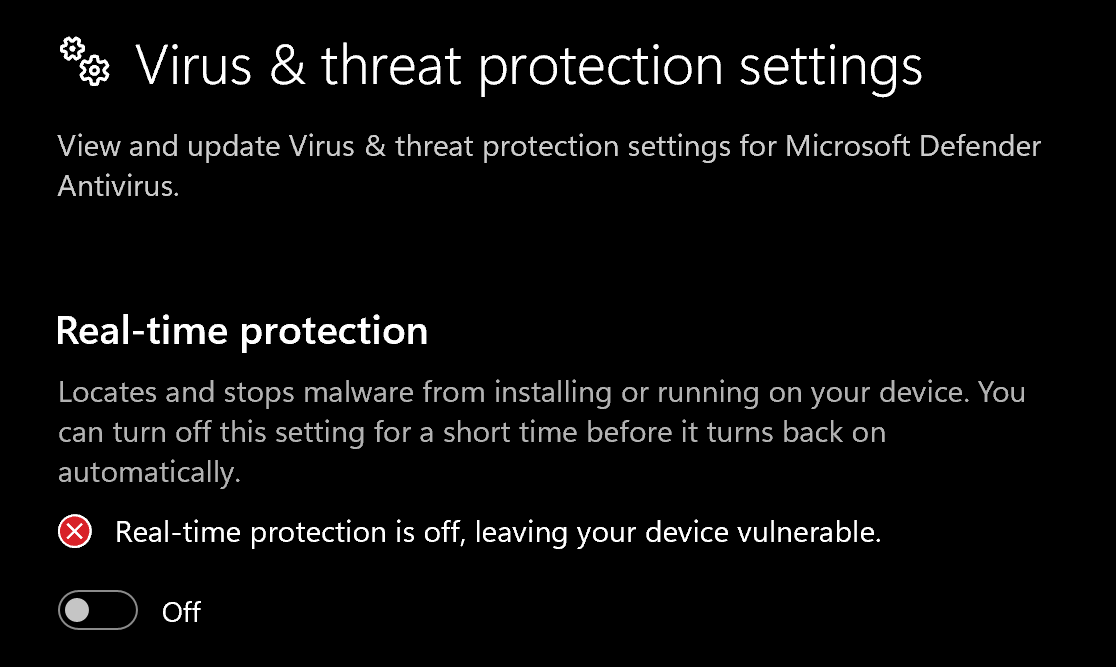
1. Disable **Virus & threat protection settings**
1. Search "Virus & Threat Protection Setting" in your windows search bar
2. Click "Manage Settings"
3. Disable all settings here, including "Real-time protection"
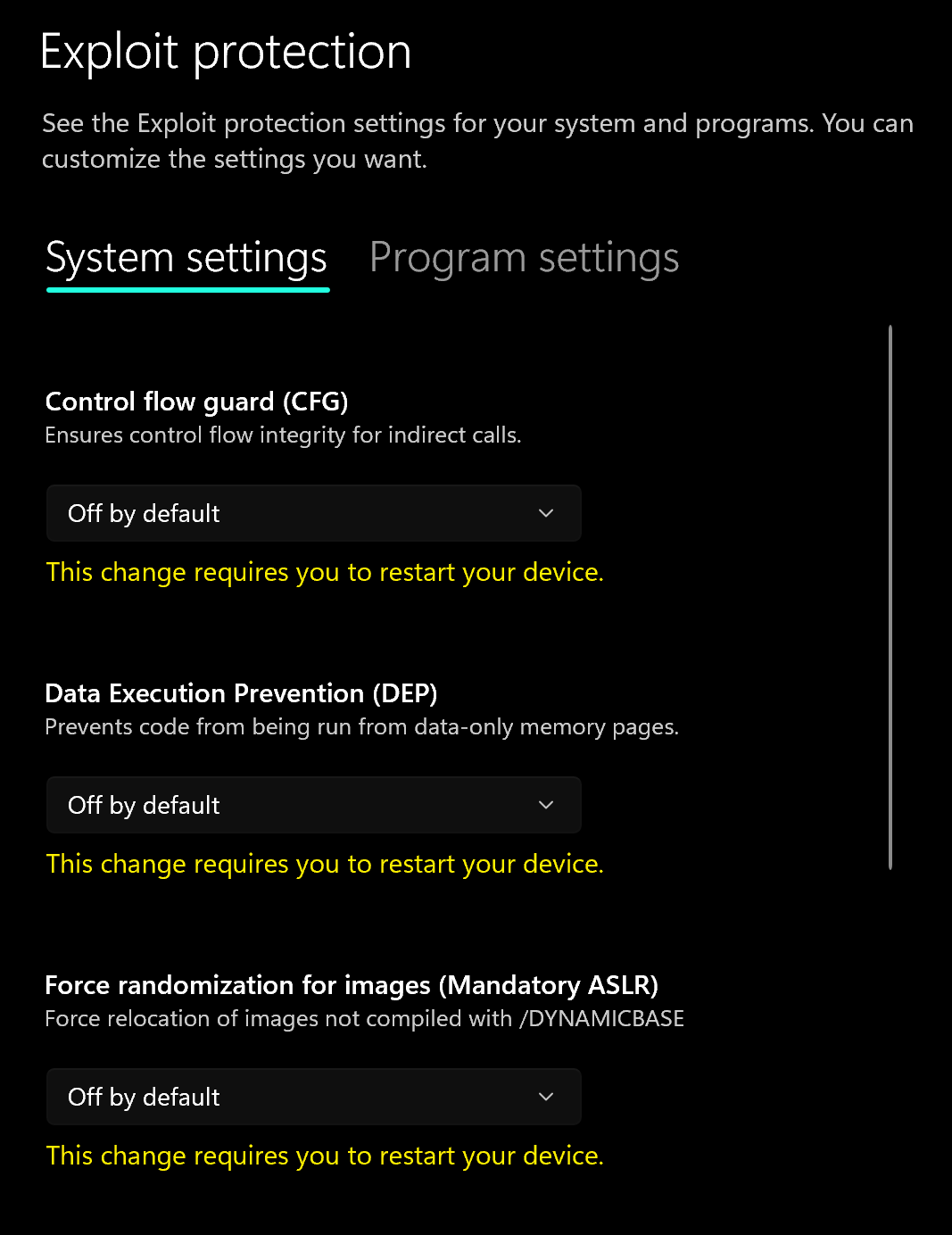
2. Disable **Exploit Protection**
1. Search "Exploit Protection" in your windows search bar
2. Choose "off by default" for each option
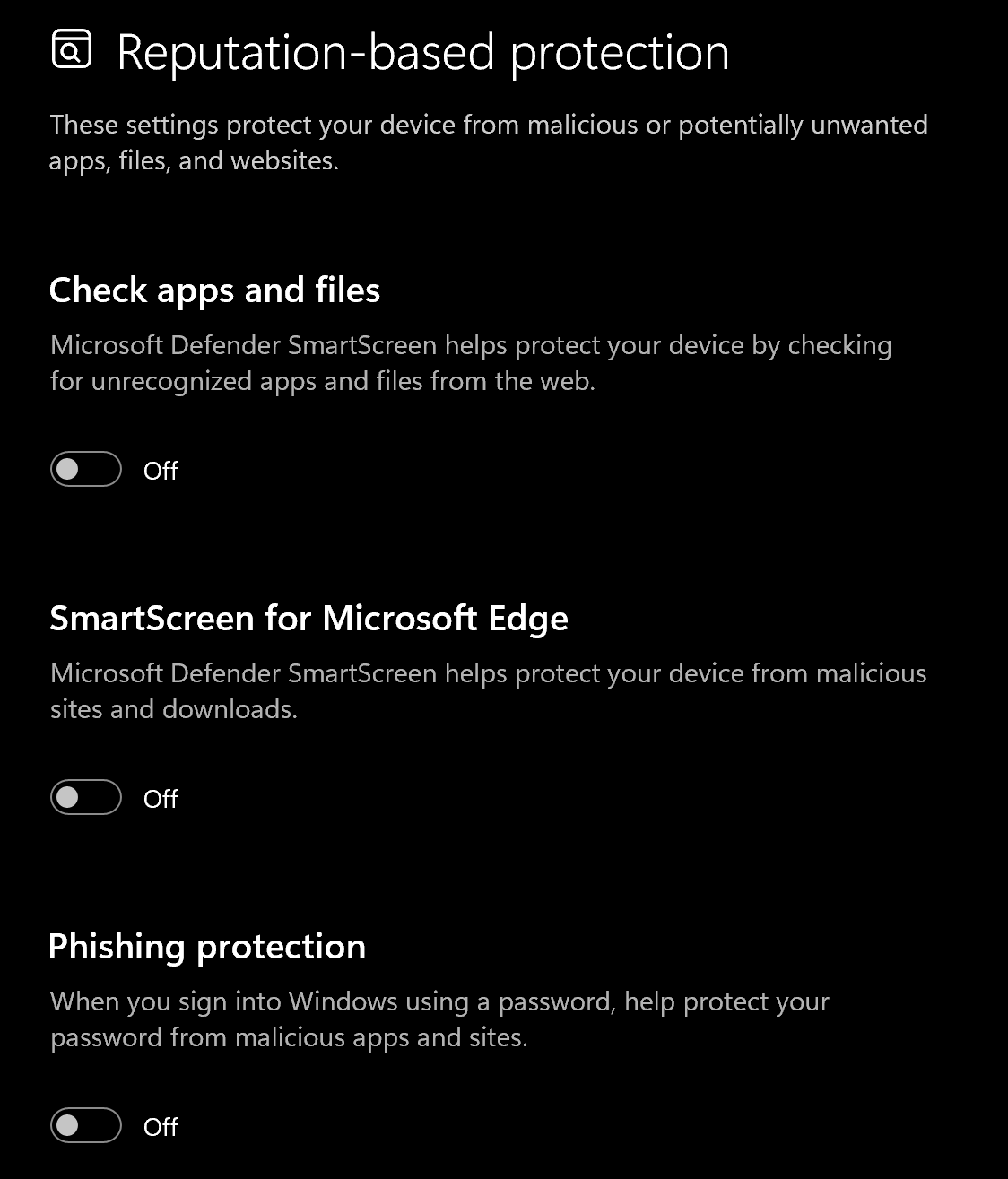
3. Disable **Reputation-based protection**
1. Search "Reputation-based protection" in your windows search bar
2. Disable all settings on this page
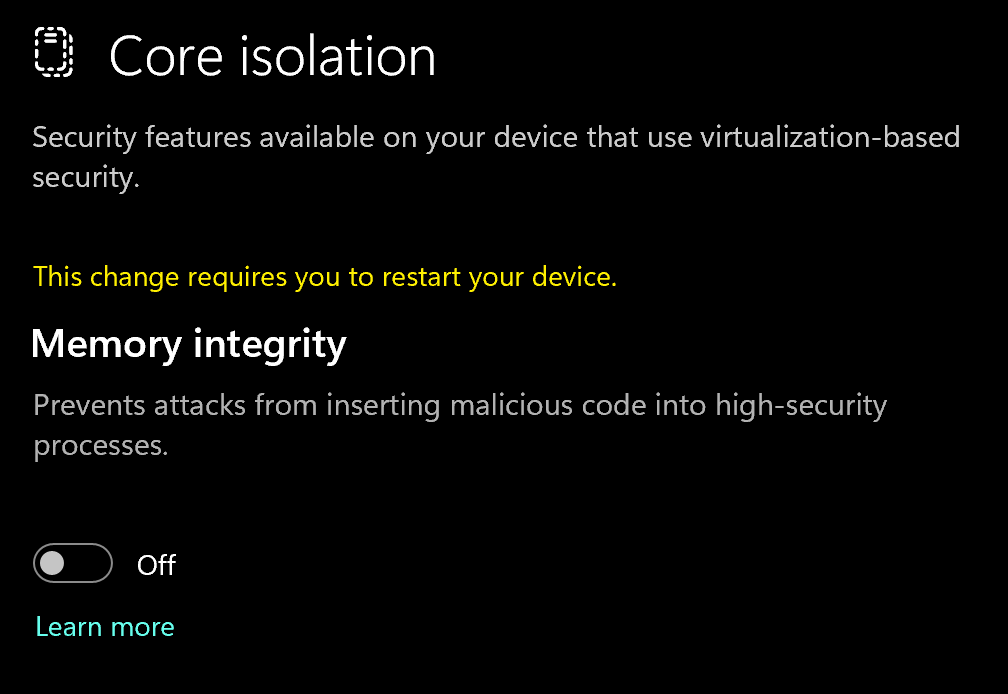
4. Disable **Memory Integrity**
1. Search "Core Isolation" in your windows search bar
2. Disable "Memory integrity"
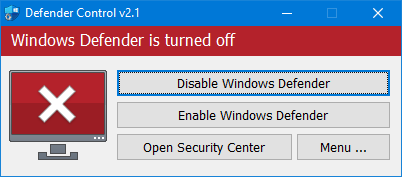
5. Download and Install **DControl.**
1. Download [winrar ](https://www.win-rar.com/postdownload.html)and install it. *(This is needed to extract certain files)*
2. Download [DControl](https://drive.usercontent.google.com/download?id=1jxmKjN820qP_cLZLgbeBi-aP5DUbROle\&export=download\&authuser=0) *(password is "sordum")*
3. Open it and select "Disable Windows Defender
Why do I need to use DControl?
What DControl does is completely disable windows defender so when you restart your computer, it doesn't automatically turn on again. Without it, everytime you restart, you'll have to repeat the above steps. Overall will just save you time when you want to use the cheat.
6. Restart Computer
1. Once the above steps are completed, restart your PC to apply the changes
#### Remove Other Anti-Cheats
Uninstall the following if installed:
* **FACEIT Anti-Cheat**
* **Vanguard** (Valorant Anti-Cheat)
{% endstep %}
{% step %}
### Download Loader
Download Loader Here
{% endstep %}
{% step %}
### Injection Process
#### Step-by-Step Injection
1. Download and run the **Frost Loader**
2. You will need to create an account in the loader. *This account is separate from your arcticcheats.wtf login*
3. Select your game
4. Click "Start" on the desired game
5. Start the game
6. Use Insert on your keyboard to open and close the menu
{% hint style="success" %}
**To reduce the risk of your account and HWID being banned**, it is highly recommended to use a HWID spoofer.\
\
If you need a HWID spoofer, check out [Trace 2.0](https://arcticcheats.wtf/store/product/460-trace-20/) in our store. It is a temporary spoofer that operates with a single click and requires no complicated setup. Run it after injecting the cheat software.
{% endhint %}
{% endstep %}
{% endstepper %}
***
### Common Errors / Questions
Failed to connect
1. Confirm every **Disable Windows Defender** step is complete.
2. Enable a VPN such as [WARP](https://one.one.one.one/) and try again.
3. If the issue continues, press `Windows + R`, run `winver`, and check your Windows version. If it is `25H2`, downgrade using [this video guide](https://www.youtube.com/watch?v=u2afU_wgox4).
Menu does not appear after injecting
Set the game display mode to **Borderless** or **Windowed Fullscreen**. Then close the game and inject again.
Failed to stream resources
Enable a VPN such as [WARP](https://one.one.one.one/) during injection. You can disable it after the cheat loads in-game.
BO6 does not appear in the loader
1. Select the **Warzone** module in Frost Loader.
2. Load and inject the module.
3. Launch Call of Duty: Black Ops 6.
ESP is laggy in-game
1. Set the Frost overlay FPS to `50–80`.
2. Lower graphics settings, especially textures, shadows, anti-aliasing, FOV, and post-processing.
Please close Easy Anti-Cheat
1. Close the game before starting injection.
2. Restart your PC and try again if needed.
Loader failed to map mpr error
This can happen due to 2 reasons:
1: You don’t have enough memory installed. Install more RAM into your PC and try again. Recommended is to have 16 GB of memory.
2: You don't have enough RAM freed up. Quit background apps and close programs then try again.
Does Frost support controller?
The game Frost does not natively support controllers.
However, players who wish to use a controller may still be able to do so with some limitations or workarounds:
* ESP Functionality: If you are using external tools (like an ESP - Extra Sensory Perception feature) and are only looking for that specific function, a controller may still be usable.
* Aim Functionality: Please be aware that the aiming mechanic will not work correctly or be supported when attempting to use a controller directly.
* Recommended Workaround: To achieve full controller compatibility, it is recommended to use a third-party key remapping software, such as reWASD. This software allows you to map your controller inputs to simulate mouse and keyboard commands, enabling you to use your controller for all in-game actions.
Does Frost come with a HWID spoofer?
Frost does not include a HWID spoofer. It is highly recommended to get our Trace 2.0 spoofer.
***
### Need Help?
If you’re stuck, unsure about a step, or encountering an error, reach out to our support team for assistance.
Open Live Support
Buy Frost for Arc Raiders
***