> For the complete documentation index, see [llms.txt](https://docs.arcticcheats.wtf/llms.txt). Markdown versions of documentation pages are available by appending `.md` to page URLs; this page is available as [Markdown](https://docs.arcticcheats.wtf/product-guides/select-your-game/rainbow-six-siege/frost.md).
# Frost
Welcome to the **Frost Cheat Setup Guide**.\
This guide is divided into easy-to-follow sections to ensure a smooth and successful setup.
Buy Frost for Rainbow Six Siege
{% hint style="warning" %}
Please follow all instructions carefully. Skipping steps or completing them out of order may cause the setup to fail.
{% endhint %}
{% hint style="success" %}
**Don't be blatant!** Using obvious feature will increase the likelihood of a ban. For the safest experience, stick to ESP only and use more obvious features only on occasion.
{% endhint %}
***
{% stepper %}
{% step %}
### Getting Started
#### Disable Windows Defender
Why do I need to do this?
You need to disable your antivirus because it can block cheats or loaders from running correctly. Antivirus programs often flag cheat software as malicious because it modifies or injects code into games to enable features like aimbot or ESP which appears abnormal for a file to do. This is a common issue for all game cheats, not just Arctic Cheats. Rest Assured, Arctic Cheats is safe to use.
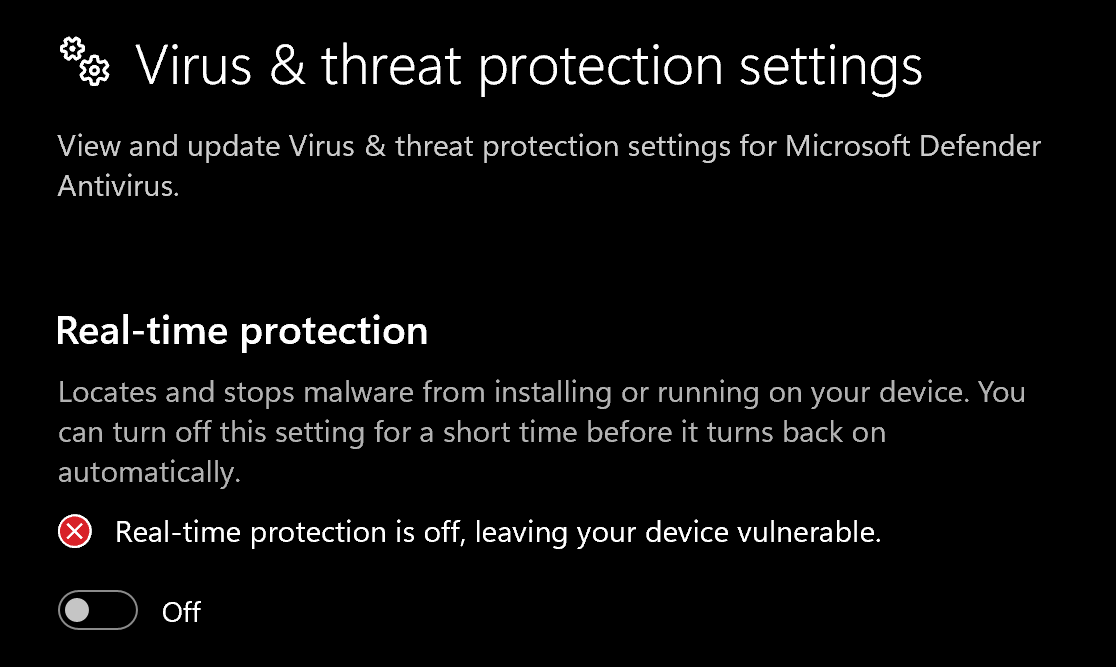
1. Disable **Virus & threat protection settings**
1. Search "Virus & Threat Protection Setting" in your windows search bar
2. Click "Manage Settings"
3. Disable all settings here, including "Real-time protection"
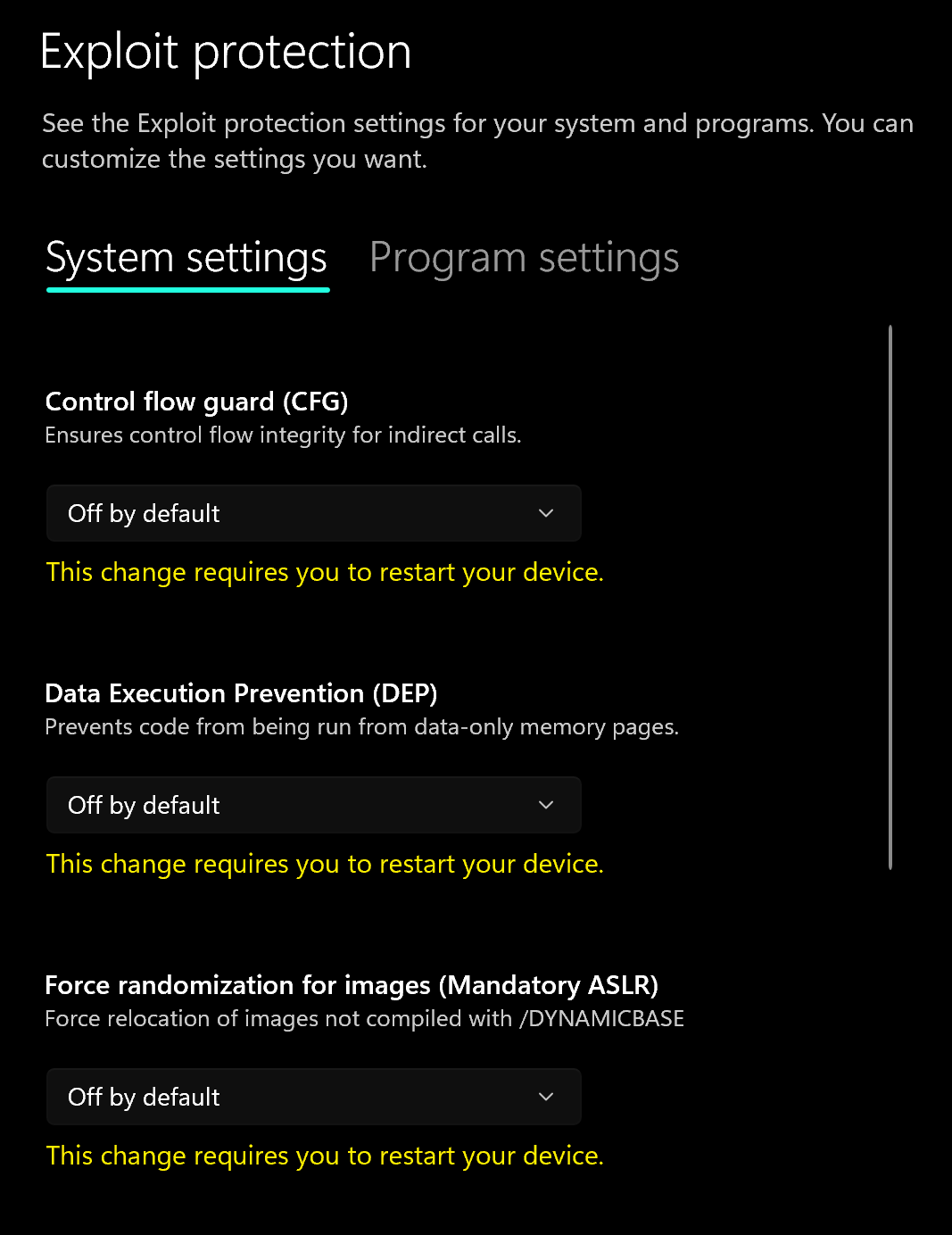
2. Disable **Exploit Protection**
1. Search "Exploit Protection" in your windows search bar
2. Choose "off by default" for each option
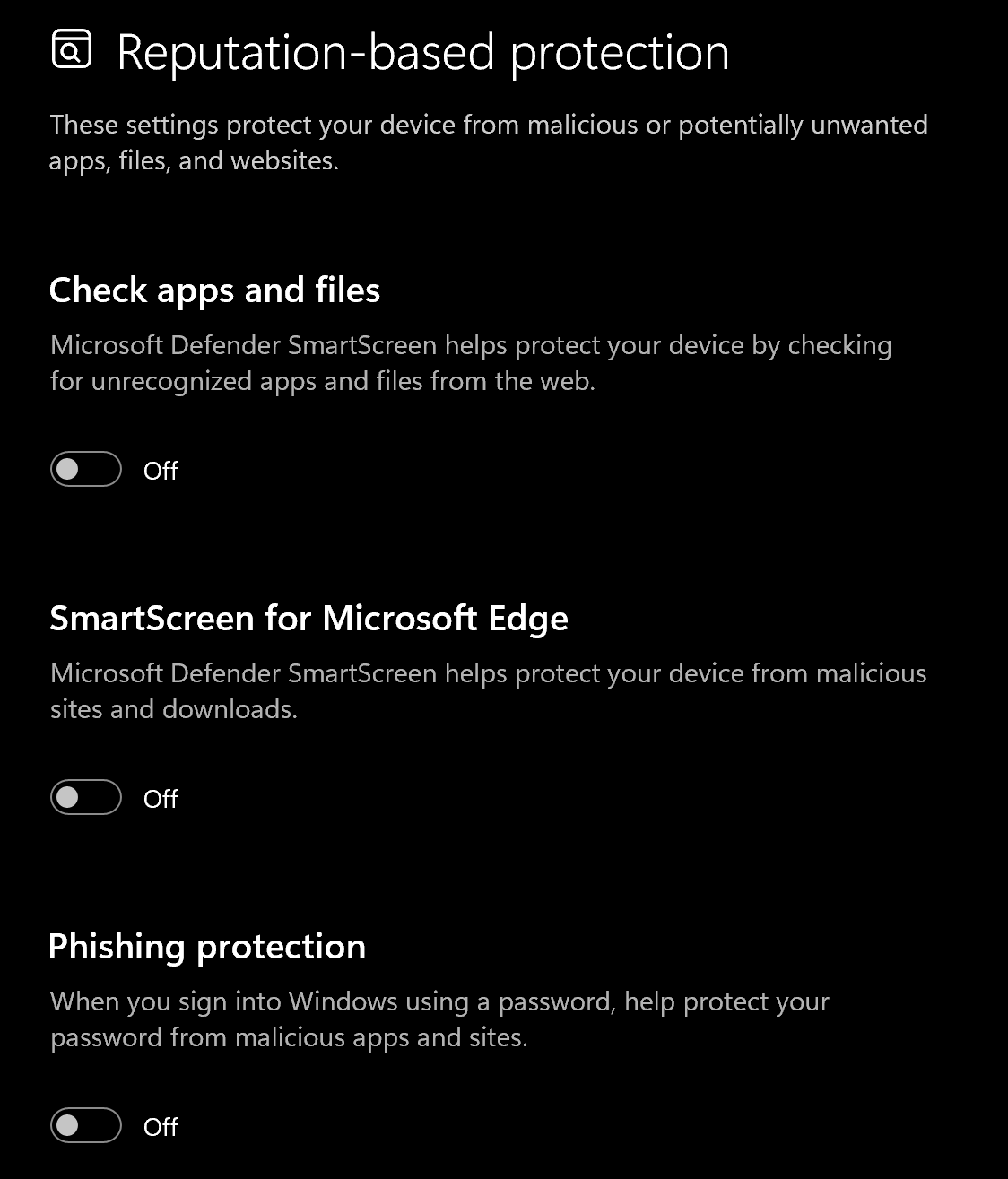
3. Disable **Reputation-based protection**
1. Search "Reputation-based protection" in your windows search bar
2. Disable all settings on this page
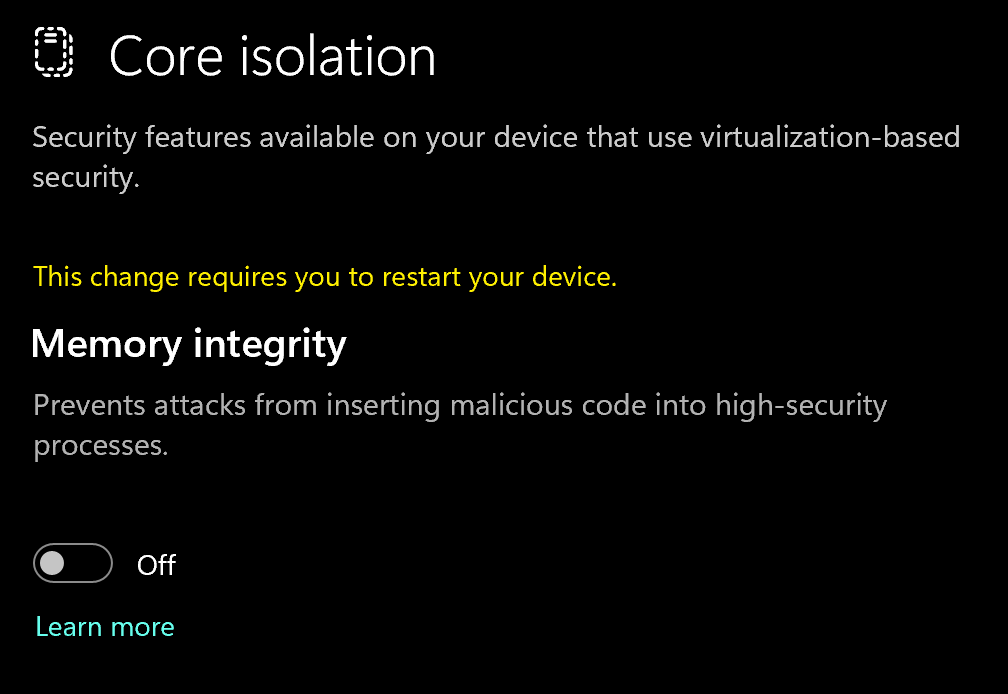
4. Disable **Memory Integrity**
1. Search "Core Isolation" in your windows search bar
2. Disable "Memory integrity"
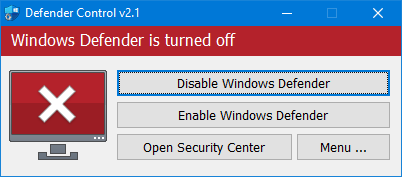
5. Download and Install **DControl.**
1. Download [winrar ](https://www.win-rar.com/postdownload.html)and install it. *(This is needed to extract certain files)*
2. Download [DControl](https://drive.usercontent.google.com/download?id=1jxmKjN820qP_cLZLgbeBi-aP5DUbROle\&export=download\&authuser=0)
3. Open it and select "Disable Windows Defender
Why do I need to use DControl?
What DControl does is completely disable windows defender so when you restart your computer, it doesn't automatically turn on again. Without it, everytime you restart, you'll have to repeat the above steps. Overall will just save you time when you want to use the cheat.
6. Restart Computer
1. Once the above steps are completed, restart your PC to apply the changes
#### Remove Other Anti-Cheats
Uninstall the following if installed:
* **FACEIT Anti-Cheat**
* **Vanguard** (Valorant Anti-Cheat)
#### Change Rainbow Six Siege Display Settings
Inside the game:
* Set **Display Mode** to **Fullscreen**
* Disable **Anti-Aliasing** (set to *Off* or *None*)
Once all steps are complete, **restart your PC**.
{% endstep %}
{% step %}
### BIOS Configuration
How to enter BIOS
**Method 1:**
* Restart your PC
* Press **DEL**, **F2**, or **F10** repeatedly during boot\
(Your motherboard manufacturer usually displays the correct key)
**Method 2:**
1. Search **Change Advanced Startup Options**
2. Click **Restart Now**
3. Go to **Troubleshoot → Advanced Options → UEFI Firmware Settings**
4. Click **Restart**
#### Disable Secure Boot
1. Search **System Information**
2. Check **Secure Boot State**
3. If it shows **ON**:
* Search **Change Advanced Startup Options**
* Click **Restart Now**
* Go to **Troubleshoot → UEFI Firmware Settings**
* In BIOS, disable **Secure Boot** (Boot or Security tab)
#### Disable Virtualization
While in BIOS:
* Locate **Virtualization** under **CPU Features** or **CPU Configuration**
* Disable the setting
{% endstep %}
{% step %}
### Download Loader
Download Loader Here
{% endstep %}
{% step %}
### Injection Process
####
#### Step-by-Step Injection
1. Download the loader using the provided link
2. Run the loader as **Administrator**
3. Paste your **license key**
* Do **not** include spaces or new lines
4. In the dropdown:
* Select **No Spoofer** or **BE Spoofer**
* **Do NOT select EAC Spoofer**
5. Click **Authenticate**, then click **Launch**
6. Wait for assets to download
7. Run the loader, press **Space** and launch **Rainbow Six Siege**
8. Set your game to **Borderless**
> If the game was launched in Fullscreen, you may need to restart the injection process
9. Once in the main menu, press **INS** to open the cheat menu
> First launch may take **1–3 minutes**
{% hint style="success" %}
**To reduce the risk of your account and HWID being banned**, it is highly recommended to use a HWID spoofer.\
\
If you need a HWID spoofer, check out [Trace 2.0](https://arcticcheats.wtf/store/product/460-trace-20/) in our store. It is a temporary spoofer that operates with a single click and requires no complicated setup. Run it after injecting the cheat software.
{% endhint %}
{% endstep %}
{% endstepper %}
***
### Common Errors
ESP Does Not Line Up
How to fix:
* Open **Game Settings**
* Go to **Graphics / Video**
* Disable **Anti-Aliasing** (set to *Off* or *None*)
* Adjust **Upscaling Settings**:
* **AMD:** Set *FidelityFX Super Resolution (FSR)* to **Off**
* **NVIDIA:** Set *DLSS (Deep Learning Super Sampling)* to **Off**
* Apply and save settings
* **Reinject your software** (if applicable)
No Visuals or ESP appearing
Fix #1:
1. Open **Game Settings**
2. Go to **Display Mode**
3. Change display mode to **Fullscreen**
4. Apply settings and **restart the game**
> ℹ️ Windowed or Borderless modes can cause visual issues.\
> Fullscreen mode usually resolves this problem.
Fix #2:
If you are already in Fullscreen mode and still do not see visuals, overlays may be interfering with rendering or injection.
Disable the following overlays:
* Discord Overlay
* NVIDIA GeForce Experience Overlay
* Ubisoft Connect Overlay
* Xbox Game Bar
* Steam Overlay (if applicable)
* MSI Afterburner / Rivatuner Statistics Server (RTSS)
* AMD Radeon Overlay
Once all overlays are disabled:
1. Restart your game
2. Reinject the software if needed
***
### Need Help?
If you’re stuck, unsure about a step, or encountering an error, reach out to our support team for assistance.
Open Live Support
Buy Frost for Rainbow Six Siege
***