> For the complete documentation index, see [llms.txt](https://docs.arcticcheats.wtf/llms.txt). Markdown versions of documentation pages are available by appending `.md` to page URLs; this page is available as [Markdown](https://docs.arcticcheats.wtf/product-guides/select-your-game/rust/meta.md).
# Meta
Welcome to the **Meta Cheat Setup Guide**.\
This guide is divided into easy-to-follow sections to ensure a smooth and successful setup.
Buy Meta for Rust
{% hint style="warning" %}
Please follow all instructions carefully. Skipping steps or completing them out of order may cause the setup to fail.
{% endhint %}
{% hint style="success" %}
**Don't be blatant!** Using obvious feature will increase the likelihood of a ban. For the safest experience, stick to ESP only and use more obvious features only on occasion.
{% endhint %}
***
{% stepper %}
{% step %}
### Getting Started
#### Disable Windows Defender
Why do I need to do this?
You need to disable your antivirus because it can block cheats or loaders from running correctly. Antivirus programs often flag cheat software as malicious because it modifies or injects code into games to enable features like aimbot or ESP which appears abnormal for a file to do. This is a common issue for all game cheats, not just Arctic Cheats. Rest Assured, Arctic Cheats is safe to use.
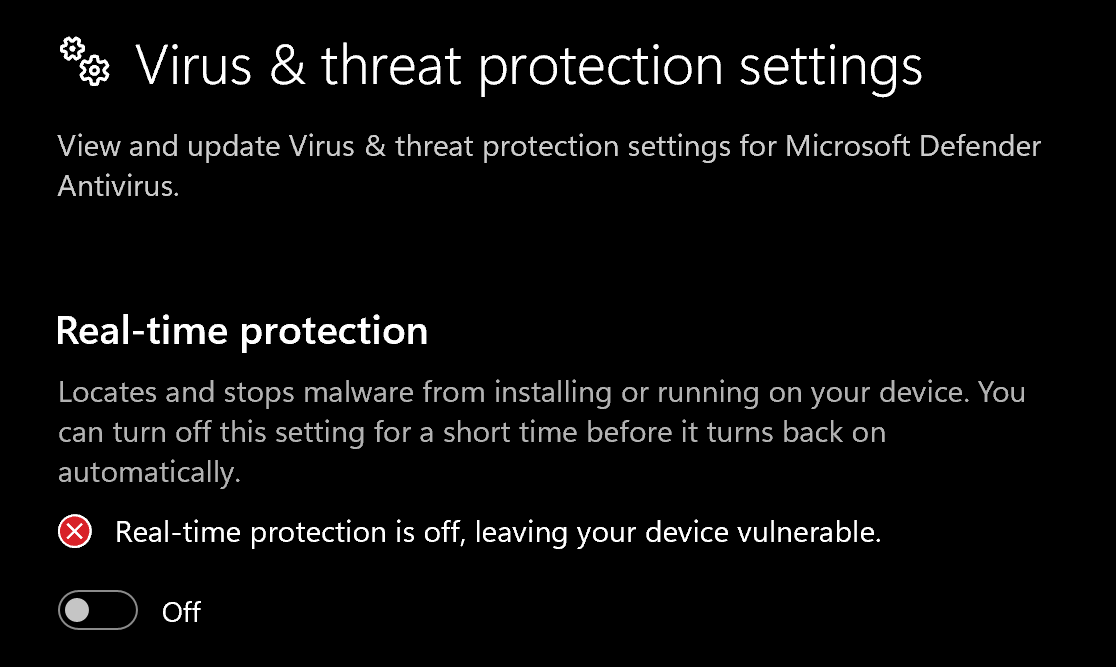
1. Search **Virus & Threat Protection**
2. Disable **all settings**, including real-time protection
> **Recommended**\
> Download and run [**DControl**](https://drive.usercontent.google.com/download?id=1jxmKjN820qP_cLZLgbeBi-aP5DUbROle\&export=download\&authuser=0) to fully disable antivirus protection. You may need to download [Win-Rar](https://win-rar.com/) in order to extract the DControl file.\
> **Password:** `sordum`
#### Remove Other Anti-Cheats
Uninstall the following if installed:
* **FACEIT Anti-Cheat**
* **Vanguard** (Valorant Anti-Cheat)
#### Download Visual C++
1. Go to [this link](https://www.techpowerup.com/download/visual-c-redistributable-runtime-package-all-in-one/)
2. Download and install Visual C++
#### Download DirectX
1. Go to [this link](https://www.microsoft.com/en-us/download/details.aspx?id=35)
2. Download DirectX
3. Untick the bing option and install it
{% endstep %}
{% step %}
### Download Loader
Download Loader Here
{% endstep %}
{% step %}
### Injection Process
#### Step-by-Step Injection
1. Download and run the Meta **Loader**
2. You will need to create an account in the loader. *This account is separate from your arcticcheats.wtf login*
3. Enter your **license key**
4. Click "**Rust Internal"**
5. Click Load and wait until it says "Click OK to start".
6. The loader tells you exactly when to launch the game, follow each prompt in order.
7. Use insert on your keyboard to open and close the menu once in Rust
{% hint style="success" %}
**To reduce the risk of your account and HWID being banned**, it is highly recommended to use a HWID spoofer.\
\
If you need a HWID spoofer, check out [Trace 2.0](https://arcticcheats.wtf/store/product/460-trace-20/) in our store. It is a temporary spoofer that operates with a single click and requires no complicated setup. Run it after injecting the cheat software.
{% endhint %}
{% endstep %}
{% endstepper %}
***
### Common Errors
{% hint style="info" %}
Meta reports a numbered code when something goes wrong. Find your code below for what it means and how to fix it. If nothing here works, open a ticket with our support team and include the code.
{% endhint %}
#### Support Information
How our support works for Meta, and what to expect before you open a ticket.
Missing Error Codes
Given the complex development of the cheat and all of its components, it is very possible that this list may be missing your specific issue and or your error code simply has not been added yet. If this is the case please refer to [this guide](#general-support-situations) to make finding support in these unique situations as seamless as possible.
Response Times
Our team's response times may vary widely depending on the specific error, or our specific schedules, so please be patient. As some errors are highly complex and unique in nature.
Compensation
We will always compensate your subscription for any lost time and some extra for longer waits. If an issue cannot be reached within a meaningful amount of time, we may have to issue a refund or a switch to another product, whichever fits the situation best.
#### Staging Errors
Shown by the loader before the cheat is built, usually a connection or runtime problem.
Initial Response: 0x0 (ISP Blocking, Firewall or Connection Issue)
**Try this first**
1. Try connection to a VPN (Different region than that of the customers actual region)
2. Try disabling your windows defender firewall completely
3. Try disabling your ISP's internet protection system
**If that does not fix it**
1. Open a ticket with Arctic Cheats support
2. Upload a screenshot of the error (It may contain helpful information for our support team)
3. Wait patiently for our team to help you out ([How long does it take to get a reply?](#response-times))
Initial Response: 0x1 (Authentication Response Failure)
**Try this first**
1. Download a fresh loader from [our download page](https://arcticcheats.wtf/download/meta) using a valid license
2. Try connecting to a VPN
**If that does not fix it**
1. Open a ticket with Arctic Cheats support
2. Upload a screenshot of the error (It may contain helpful information for our support team)
3. Wait patiently for our team to help you out ([How long does it take to get a reply?](#response-times))
Initial Response: 0x2 (Authentication Response Failure)
**Try this first**
1. Download a fresh loader from [our download page](https://arcticcheats.wtf/download/meta) using a valid license
**If that does not fix it**
Open a ticket with Arctic Cheats support and provide your error code
Initial Response: 0x3 (Resource Lookup Failure)
**Try this first**
1. Install Visual Redist. packages ([Install](https://aka.ms/vc14/vc_redist.x64.exe))
2. Install DirectX runtimes ([Install](https://www.microsoft.com/en-us/download/details.aspx?id=35))
3. Update windows to the latest available version
**If that does not fix it**
1. Open a ticket with Arctic Cheats support
2. Upload a screenshot of the error (It may contain helpful information for our support team)
3. Wait patiently for our team to help you out ([How long does it take to get a reply?](#response-times))
Initial Response: 0x4 (Module Allocation Failure)
**Try this first**
1. Uninstall anti-virus and or system monitoring tools (Windows defender included)
**If that does not fix it**
Open a ticket with Arctic Cheats support and provide your error code
Build Response: 0x0 (Firewall or Connection Issue)
**Try this first**
1. Try connection to a VPN (Different region than that of the customers actual region)
2. Try disabling your windows defender firewall completely
**If that does not fix it**
Open a ticket with Arctic Cheats support and provide your error code
Build Response: 0x1 (Authentication Response Failure)
**Try this first**
1. Download a fresh loader from [our download page](https://arcticcheats.wtf/download/meta) using a valid license
2. Try connecting to a VPN
**If that does not fix it**
Open a ticket with Arctic Cheats support and provide your error code
Build Response: 0x2 (Module Setup Failure)
**Try this first**
1. Uninstall anti-virus and or system monitoring tools (Windows defender included)
**If that does not fix it**
Open a ticket with Arctic Cheats support and provide your error code
#### Bypass Failure
Shown while the loader is preparing your system. Match both parts of the code.
Code: 0x0 : 0x0 (Authentication Response Failure)
**Try this first**
1. Make sure your internet connection is stable & preferably fairly decent
2. Try connecting to a VPN
**If that does not fix it**
Open a ticket with Arctic Cheats support and provide your error code, your internet may be too slow or our services might be in an outage
Code: 0x0 : 0x1 (Authentication Response Failure)
**What it means:** Authentication Response Failure (Contact support, no known fixes)
Code: 0x0 : 0x2 (Critical Bypass Failure)
**Try this first**
1. Restart your computer and re-inject
**If that does not fix it**
Open a ticket with Arctic Cheats support and provide your error code
Code: 0x0 : 0x3 (Critical Bypass Failure)
**Try this first**
1. Uninstall anti-virus and or system monitoring tools (Windows defender included)
**If that does not fix it**
Open a ticket with Arctic Cheats support and provide your error code
Code: 0x0 : 0x4 (Critical Bypass Failure)
**Try this first**
1. Uninstall anti-virus and or system monitoring tools (Windows defender included)
**If that does not fix it**
Open a ticket with Arctic Cheats support and provide your error code
Code: 0x0 : 0x5 (Critical Bypass Failure)
**Try this first**
1. Uninstall anti-virus and or system monitoring tools (Windows defender included)
**If that does not fix it**
Open a ticket with Arctic Cheats support and provide your error code
Code: 0x0 : 0x6 (Critical Bypass Failure)
**Try this first**
1. Uninstall anti-virus and or system monitoring tools (Windows defender included)
**If that does not fix it**
Open a ticket with Arctic Cheats support and provide your error code
Code: 0x0 : 0x7 (Critical Bypass Failure)
**Try this first**
1. Uninstall anti-virus and or system monitoring tools (Windows defender included)
**If that does not fix it**
Open a ticket with Arctic Cheats support and provide your error code
Code: 0x0 : 0x8 (Driver Load Failure)
**Try this first**
1. Uninstall [face-it](https://www.faceit.com/en) and any other "persistent" anti-cheat software
2. Disable vulnerable driver blocklist ([Guide](https://www.ninjaone.com/blog/enable-or-disable-microsoft-vulnerable-driver-blocklist/))
3. Uninstall anti-virus and or system monitoring tools ([Defender Control](https://www.sordum.org/downloads/?st-defender-control))
**If that does not fix it**
1. Open a ticket with Arctic Cheats support and provide your error code
2. Wait patiently for our team to help you remove whatever is blocking it ([How long does it take to get a reply?](#response-times))
Code: 0x0 : 0x9 (Driver Connection Failure)
**Try this first**
1. Uninstall anti-virus and or system monitoring tools (Windows defender included)
**If that does not fix it**
1. Open a ticket with Arctic Cheats support and provide your error code
2. Collect a log from the Meta loader "Loader.log" ([How to collect a log?](#collecting-logs))
3. Wait patiently for our team to help you out ([How long does it take to get a reply?](#response-times))
Code: 0x1 : 0x0 (Critical Bypass Failure)
**Try this first**
1. Uninstall face-it and any other "persistent" anti-cheat software
2. Uninstall anti-virus and or system monitoring tools (Windows defender included)
**If that does not fix it**
1. Open a ticket with Arctic Cheats support and provide your error code
2. Collect a log from the Meta loader "Loader.log" ([How to collect a log?](#collecting-logs))
3. Wait patiently for our team to help you out ([How long does it take to get a reply?](#response-times))
Code: 0x1 : 0x1 (Critical Bypass Failure)
**Try this first**
1. Uninstall face-it and any other "persistent" anti-cheat software
2. Disable kernel verifier (Kernel development tool, make sure its completely uninstalled)
3. Uninstall anti-virus and or system monitoring tools (Windows defender included)
**If that does not fix it**
1. Open a ticket with Arctic Cheats support and provide your error code
2. Collect a log from the Meta loader "Loader.log" ([How to collect a log?](#collecting-logs))
3. Wait patiently for our team to help you out ([How long does it take to get a reply?](#response-times))
Code: 0x1 : 0x2 (Critical Bypass Failure)
**Try this first**
1. Uninstall face-it and any other "persistent" anti-cheat software
2. Uninstall anti-virus and or system monitoring tools (Specifically [Kaspersky Anti-Virus](https://usa.kaspersky.com/) is known to cause this issue)
**If that does not fix it**
1. Open a ticket with Arctic Cheats support and provide your error code
2. Collect a log from the Meta loader "Loader.log" ([How to collect a log?](#collecting-logs))
3. Wait patiently for our team to help you out ([How long does it take to get a reply?](#response-times))
Code: 0x1 : 0x3 (Critical Bypass Failure)
**Try this first**
1. Uninstall face-it and any other "persistent" anti-cheat software
2. Uninstall anti-virus and or system monitoring tools (Specifically [Kaspersky Anti-Virus](https://usa.kaspersky.com/) is known to cause this issue)
**If that does not fix it**
1. Open a ticket with Arctic Cheats support and provide your error code
2. Collect a log from the Meta loader "Loader.log" ([How to collect a log?](#collecting-logs))
3. Wait patiently for our team to help you out ([How long does it take to get a reply?](#response-times))
Code: 0x1 : 0x4 (Critical Bypass Failure)
**Try this first**
1. Uninstall anti-virus and or system monitoring tools (Windows defender included)
**If that does not fix it**
1. Open a ticket with Arctic Cheats support and provide your error code
2. Collect a log from the Meta loader "Loader.log" ([How to collect a log?](#collecting-logs))
3. Wait patiently for our team to help you out ([How long does it take to get a reply?](#response-times))
Code: 0x4 : 0x0 (Critical Bypass Failure)
**Try this first**
1. Quit [Steam](https://store.steampowered.com/) completely and re-launch, re-inject after this is complete
2. Uninstall anti-virus and or system monitoring tools (Windows defender included)
**If that does not fix it**
1. Open a ticket with Arctic Cheats support and provide your error code
2. Collect a log from the Meta loader "Loader.log" ([How to collect a log?](#collecting-logs))
3. Wait patiently for our team to help you out ([How long does it take to get a reply?](#response-times))
Code: 0x4 : 0x1 (Critical Bypass Failure)
**Try this first**
1. Uninstall anti-virus and or system monitoring tools (Windows defender included)
**If that does not fix it**
1. Open a ticket with Arctic Cheats support and provide your error code
2. Collect a log from the Meta loader "Loader.log" ([How to collect a log?](#collecting-logs))
3. Wait patiently for our team to help you out ([How long does it take to get a reply?](#response-times))
Code: 0x4 : 0x2 (Critical Bypass Failure)
**Try this first**
1. Uninstall anti-virus and or system monitoring tools (Windows defender included)
**If that does not fix it**
1. Open a ticket with Arctic Cheats support and provide your error code
2. Collect a log from the Meta loader "Loader.log" ([How to collect a log?](#collecting-logs))
3. Wait patiently for our team to help you out ([How long does it take to get a reply?](#response-times))
Code: 0x4 : 0x3 (Critical Bypass Failure)
**Try this first**
1. Try unplugging a ram stick if you have more than one (Best to contact support if this isn't ideal)
2. Uninstall anti-virus and or system monitoring tools (Windows defender included)
**If that does not fix it**
1. Open a ticket with Arctic Cheats support and provide your error code
2. Collect a log from the Meta loader "Loader.log" ([How to collect a log?](#collecting-logs))
3. Wait patiently for our team to help you out ([How long does it take to get a reply?](#response-times))
Code: 0x4 : 0x4 (Exhausted System Resources)
**Try this first**
1. Make sure your PC has more than 8gb of ram
2. Uninstall anti-virus and or system monitoring tools (Windows defender included)
Code: 0x4 : 0x5 (Exhausted System Resources)
**Try this first**
1. Make sure your PC has more than 8gb of ram
2. Uninstall anti-virus and or system monitoring tools (Windows defender included)
Code: 0x4 : 0x6 (Critical Bypass Failure)
**Try this first**
1. Uninstall anti-virus and or system monitoring tools (Windows defender included)
**If that does not fix it**
1. Open a ticket with Arctic Cheats support and provide your error code
2. Collect a log from the Meta loader "Loader.log" ([How to collect a log?](#collecting-logs))
3. Wait patiently for our team to help you out ([How long does it take to get a reply?](#response-times))
Code: 0x4 : 0x7 (Exhausted System Resources)
**Try this first**
1. Make sure your PC has more than 8gb of ram
2. Uninstall anti-virus and or system monitoring tools (Windows defender included)
Code: 0x4 : 0x9 (Exhausted System Resources)
**Try this first**
1. Make sure your PC has more than 8gb of ram
2. Uninstall anti-virus and or system monitoring tools (Windows defender included)
Code: 0x4 : 0x10 (Critical Bypass Failure)
**Try this first**
1. Disable Virtualization Based Security
2. Uninstall anti-virus and or system monitoring tools (Windows defender included)
**If that does not fix it**
1. Open a ticket with Arctic Cheats support and provide your error code
2. Collect a log from the Meta loader "Loader.log" ([How to collect a log?](#collecting-logs))
3. Wait patiently for our team to help you out ([How long does it take to get a reply?](#response-times))
Code: 0x4 : 0x11 (Critical Bypass Failure)
**Try this first**
1. Disable Virtualization Based Security
2. Uninstall anti-virus and or system monitoring tools (Windows defender included)
**If that does not fix it**
1. Open a ticket with Arctic Cheats support and provide your error code
2. Collect a log from the Meta loader "Loader.log" ([How to collect a log?](#collecting-logs))
3. Wait patiently for our team to help you out ([How long does it take to get a reply?](#response-times))
Code: 0x4 : 0x12 (Critical Bypass Failure)
**Try this first**
1. Uninstall anti-virus and or system monitoring tools (Windows defender included)
**If that does not fix it**
1. Open a ticket with Arctic Cheats support and provide your error code
2. Collect a log from the Meta loader "Loader.log" ([How to collect a log?](#collecting-logs))
3. Wait patiently for our team to help you out ([How long does it take to get a reply?](#response-times))
Code: 0x4 : 0x13 (Resource Lookup Failure)
**Try this first**
1. Downgrade your windows version, you are using an unsupported version (We will happily support it, but it may take 24-48 hours after your files are submitted)
**If that does not fix it**
1. Open a ticket with Arctic Cheats support and provide your error code
2. Collect a log from the Meta loader "Loader.log" ([How to collect a log?](#collecting-logs))
3. Collect your "ntoskrnl.exe" from your system files ([How to collect a system file?](#collecting-system-files))
4. Wait for our team to add support for your version ([How long does it take to get a reply?](#response-times))
Code: 0x4 : 0x14 (Critical Bypass Failure)
**Try this first**
1. Uninstall anti-virus and or system monitoring tools (Windows defender included)
2. Downgrade your windows version, you might be using an unsupported version (We will happily support it, but it may take 24-48 hours after your files are submitted)
**If that does not fix it**
1. Open a ticket with Arctic Cheats support and provide your error code
2. Collect a log from the Meta loader "Loader.log" ([How to collect a log?](#collecting-logs))
3. Collect your "ntoskrnl.exe" from your system files ([How to collect a system file?](#collecting-system-files))
4. Wait for our team to add support for your version ([How long does it take to get a reply?](#response-times))
Code: 0x4 : 0x15 (Critical Bypass Failure)
**Try this first**
1. Disable Virtualization Based Security
2. Uninstall anti-virus and or system monitoring tools (Windows defender included)
3. Downgrade your windows version, you might be using an unsupported version (We will happily support it, but it may take 24-48 hours after your files are submitted)
**If that does not fix it**
1. Open a ticket with Arctic Cheats support and provide your error code
2. Collect a log from the Meta loader "Loader.log" ([How to collect a log?](#collecting-logs))
3. Collect your "ntoskrnl.exe" from your system files ([How to collect a system file?](#collecting-system-files))
4. Wait for our team to add support for your version ([How long does it take to get a reply?](#response-times))
Code: 0x4 : 0x16 (Critical Bypass Failure)
**Try this first**
1. Downgrade your windows version, you might be using an unsupported version (We will happily support it, but it may take 24-48 hours after your files are submitted)
**If that does not fix it**
1. Open a ticket with Arctic Cheats support and provide your error code
2. Collect a log from the Meta loader "Loader.log" ([How to collect a log?](#collecting-logs))
3. Collect your "ntoskrnl.exe" from your system files ([How to collect a system file?](#collecting-system-files))
4. Wait for our team to add support for your version ([How long does it take to get a reply?](#response-times))
Code: 0x4 : 0x17 (Critical Bypass Failure)
**Try this first**
1. Disable Virtualization Based Security
2. Uninstall anti-virus and or system monitoring tools (Windows defender included)
**If that does not fix it**
1. Open a ticket with Arctic Cheats support and provide your error code
2. Collect a log from the Meta loader "Loader.log" ([How to collect a log?](#collecting-logs))
3. Wait patiently for our team to help you out ([How long does it take to get a reply?](#response-times))
Code: 0x4 : 0x18 (Critical Bypass Failure)
**Try this first**
1. Disable Virtualization Based Security
2. Uninstall anti-virus and or system monitoring tools (Windows defender included)
**If that does not fix it**
1. Open a ticket with Arctic Cheats support and provide your error code
2. Collect a log from the Meta loader "Loader.log" ([How to collect a log?](#collecting-logs))
3. Wait patiently for our team to help you out ([How long does it take to get a reply?](#response-times))
Code: 0x5 : 0x0 (Critical Bypass Failure)
**Try this first**
1. Disable Virtualization Based Security
2. Uninstall anti-virus and or system monitoring tools (Windows defender included)
**If that does not fix it**
1. Open a ticket with Arctic Cheats support and provide your error code
2. Collect a log from the Meta loader "Loader.log" ([How to collect a log?](#collecting-logs))
3. Wait patiently for our team to help you out ([How long does it take to get a reply?](#response-times))
Code: 0x5 : 0x1 (Critical Bypass Failure)
**Try this first**
1. Downgrade your windows version, you are using an unsupported version (We will happily support it, but it may take 24-48 hours after your files are submitted)
**If that does not fix it**
1. Open a ticket with Arctic Cheats support and provide your error code
2. Collect a log from the Meta loader "Loader.log" ([How to collect a log?](#collecting-logs))
3. Collect "wdfilter.sys" from "System32\Drivers" ([How to collect a system file?](#collecting-system-files))
4. Wait for our team to add support for your version ([How long does it take to get a reply?](#response-times))
Code: 0x5 : 0x2 (Critical Bypass Failure)
**Try this first**
1. Restart your PC fresh & re-inject
2. Disable Virtualization Based Security
3. Uninstall anti-virus and or system monitoring tools (Windows defender included)
4. Downgrade your windows version, you might be using an unsupported version (We will happily support it, but it may take 24-48 hours after your files are submitted)
**If that does not fix it**
1. Open a ticket with Arctic Cheats support and provide your error code
2. Collect a log from the Meta loader "Loader.log" ([How to collect a log?](#collecting-logs))
3. Collect "wdfilter.sys" from "System32\Drivers" ([How to collect a system file?](#collecting-system-files))
4. Wait for our team to add support for your version ([How long does it take to get a reply?](#response-times))
Code: 0x5 : 0x3 (Critical Bypass Failure)
**Try this first**
1. Disable Virtualization Based Security
2. Uninstall anti-virus and or system monitoring tools (Windows defender included)
**If that does not fix it**
1. Open a ticket with Arctic Cheats support and provide your error code
2. Collect a log from the Meta loader "Loader.log" ([How to collect a log?](#collecting-logs))
3. Wait patiently for our team to help you out ([How long does it take to get a reply?](#response-times))
Code: 0x5 : 0x4 (Critical Bypass Failure)
**Try this first**
1. Downgrade your windows version, you are using an unsupported version (We will happily support it, but it may take 24-48 hours after your files are submitted)
**If that does not fix it**
1. Open a ticket with Arctic Cheats support and provide your error code
2. Collect a log from the Meta loader "Loader.log" ([How to collect a log?](#collecting-logs))
3. Collect "ci.dll" from your system files ([How to collect a system file?](#collecting-system-files))
4. Wait for our team to add support for your version ([How long does it take to get a reply?](#response-times))
Code: 0x5 : 0x5 (Critical Bypass Failure)
**Try this first**
1. Restart your PC fresh & re-inject
2. Disable Virtualization Based Security
3. Uninstall anti-virus and or system monitoring tools (Windows defender included)
4. Downgrade your windows version, you might be using an unsupported version (We will happily support it, but it may take 24-48 hours after your files are submitted)
**If that does not fix it**
1. Open a ticket with Arctic Cheats support and provide your error code
2. Collect a log from the Meta loader "Loader.log" ([How to collect a log?](#collecting-logs))
3. Collect "ci.dll" from your system files ([How to collect a system file?](#collecting-system-files))
4. Wait for our team to add support for your version ([How long does it take to get a reply?](#response-times))
Code: 0x5 : 0x6 (Critical Bypass Failure)
**Try this first**
1. Disable Virtualization Based Security
2. Uninstall anti-virus and or system monitoring tools (Windows defender included)
**If that does not fix it**
1. Open a ticket with Arctic Cheats support and provide your error code
2. Collect a log from the Meta loader "Loader.log" ([How to collect a log?](#collecting-logs))
3. Wait patiently for our team to help you out ([How long does it take to get a reply?](#response-times))
Code: 0x5 : 0x7 (Critical Bypass Failure)
**Try this first**
1. Downgrade your windows version, you are using an unsupported version (We will happily support it, but it may take 24-48 hours after your files are submitted)
**If that does not fix it**
1. Open a ticket with Arctic Cheats support and provide your error code
2. Collect a log from the Meta loader "Loader.log" ([How to collect a log?](#collecting-logs))
3. Collect your "ntoskrnl.exe" from your system files ([How to collect a system file?](#collecting-system-files))
4. Wait for our team to add support for your version ([How long does it take to get a reply?](#response-times))
Code: 0x5 : 0x8 (Critical Bypass Failure)
**Try this first**
1. Restart your PC fresh & re-inject
2. Disable Virtualization Based Security
3. Uninstall anti-virus and or system monitoring tools (Windows defender included)
4. Downgrade your windows version, you might be using an unsupported version (We will happily support it, but it may take 24-48 hours after your files are submitted)
**If that does not fix it**
1. Open a ticket with Arctic Cheats support and provide your error code
2. Collect a log from the Meta loader "Loader.log" ([How to collect a log?](#collecting-logs))
3. Collect your "ntoskrnl.exe" from your system files ([How to collect a system file?](#collecting-system-files))
4. Wait for our team to add support for your version ([How long does it take to get a reply?](#response-times))
Code: 0x5 : 0x9 (Critical Bypass Failure)
**Try this first**
1. Restart your PC fresh & re-inject
2. Disable Virtualization Based Security
3. Uninstall anti-virus and or system monitoring tools (Windows defender included)
4. Downgrade your windows version, you might be using an unsupported version (We will happily support it, but it may take 24-48 hours after your files are submitted)
**If that does not fix it**
1. Open a ticket with Arctic Cheats support and provide your error code
2. Collect a log from the Meta loader "Loader.log" ([How to collect a log?](#collecting-logs))
3. Wait patiently for our team to help you out ([How long does it take to get a reply?](#response-times))
Code: 0x5 : 0x10 (Critical Bypass Failure)
**Try this first**
1. Restart your PC fresh & re-inject
2. Disable Virtualization Based Security
3. Uninstall anti-virus and or system monitoring tools (Windows defender included)
4. Downgrade your windows version, you might be using an unsupported version (We will happily support it, but it may take 24-48 hours after your files are submitted)
**If that does not fix it**
1. Open a ticket with Arctic Cheats support and provide your error code
2. Collect a log from the Meta loader "Loader.log" ([How to collect a log?](#collecting-logs))
3. Collect your winver for our team ([How to collect winver?](#collecting-winver))
4. Wait for our team to add support for your version ([How long does it take to get a reply?](#response-times))
Code: 0x5 : 0x11 (Critical Bypass Failure)
**Try this first**
1. Restart your PC fresh & re-inject
2. Disable Virtualization Based Security
3. Uninstall anti-virus and or system monitoring tools (Windows defender included)
4. Downgrade your windows version, you might be using an unsupported version (We will happily support it, but it may take 24-48 hours after your files are submitted)
**If that does not fix it**
1. Open a ticket with Arctic Cheats support and provide your error code
2. Collect a log from the Meta loader "Loader.log" ([How to collect a log?](#collecting-logs))
3. Collect your winver for our team ([How to collect winver?](#collecting-winver))
4. Wait for our team to add support for your version ([How long does it take to get a reply?](#response-times))
Code: 0x5 : 0x12 (Critical Bypass Failure)
**Try this first**
1. Restart your PC fresh & re-inject
2. Disable Virtualization Based Security
3. Uninstall anti-virus and or system monitoring tools (Windows defender included)
4. Downgrade your windows version, you might be using an unsupported version (We will happily support it, but it may take 24-48 hours after your files are submitted)
**If that does not fix it**
1. Open a ticket with Arctic Cheats support and provide your error code
2. Collect a log from the Meta loader "Loader.log" ([How to collect a log?](#collecting-logs))
3. Collect your winver for our team ([How to collect winver?](#collecting-winver))
4. Wait for our team to add support for your version ([How long does it take to get a reply?](#response-times))
Code: 0x5 : 0x13 (Critical Bypass Failure)
**Try this first**
1. Restart your PC fresh & re-inject
2. Disable Virtualization Based Security
3. Uninstall anti-virus and or system monitoring tools (Windows defender included)
4. Downgrade your windows version, you might be using an unsupported version (We will happily support it, but it may take 24-48 hours after your files are submitted)
**If that does not fix it**
1. Open a ticket with Arctic Cheats support and provide your error code
2. Collect a log from the Meta loader "Loader.log" ([How to collect a log?](#collecting-logs))
3. Collect your winver for our team ([How to collect winver?](#collecting-winver))
4. Wait for our team to add support for your version ([How long does it take to get a reply?](#response-times))
#### Injection Failure
Shown when the cheat is being injected into Rust.
Code: 0x0 (Authentication Response Failure)
**Try this first**
1. Make sure your internet connection is stable & preferably fairly decent
2. Try connecting to a VPN
**If that does not fix it**
Open a ticket with Arctic Cheats support and provide your error code, your internet may be too slow or our services might be in an outage
Code: 0x1 (Authentication Response Failure)
**What it means:** Authentication Response Failure (Contact support, no known fixes)
Code: 0x2 (Authentication Response Failure)
**What it means:** Authentication Response Failure (Contact support, no known fixes)
Code: 0x4 (Module Write Failure)
**Try this first**
1. Restart your computer and re-inject
2. Uninstall anti-virus and or system monitoring tools (Windows defender included)
**If that does not fix it**
1. Open a ticket with Arctic Cheats support and provide your error code
2. Provide the team with your loader username
3. Wait patiently for our team to help you out ([How long does it take to get a reply?](#response-times))
Code: 0x5 (Module Write Failure)
**Try this first**
1. Restart your computer and re-inject
2. Uninstall anti-virus and or system monitoring tools (Windows defender included)
**If that does not fix it**
1. Open a ticket with Arctic Cheats support and provide your error code
2. Collect a log from the Meta loader "Loader.log" ([How to collect a log?](#collecting-logs))
3. Wait patiently for our team to help you out ([How long does it take to get a reply?](#response-times))
Code: 0x12 (Client Connection Failure)
**Try this first**
1. Double check your Rust config isn't read-only or locked
2. Fully re-install Rust and re-inject (Delete & re-download)
3. Set steam to run as admin ([Guide](https://www.online-tech-tips.com/how-to-run-steam-as-admin-and-why-you-may-need-to/))
4. Uninstall anti-virus and or system monitoring tools (Windows defender included)
**If that does not fix it**
1. Open a ticket with Arctic Cheats support and provide your error code
2. Collect a log from the Meta loader and cheat "Loader.log" and "Internal.log" ([How to collect a log?](#collecting-logs))
3. Wait patiently for our team to help you out ([How long does it take to get a reply?](#response-times))
Code: 0x13 (Authentication Response Failure)
**Try this first**
1. Make sure your internet connection is stable & preferably fairly decent
2. Try connecting to a VPN
**If that does not fix it**
Open a ticket with Arctic Cheats support and provide your error code, your internet may be too slow or our services might be in an outage
Code: 0x14 (Client Communication Failure)
**Try this first**
1. Fully re-install Rust and re-inject (Delete & re-download)
2. Uninstall anti-virus and or system monitoring tools (Windows defender included)
**If that does not fix it**
1. Open a ticket with Arctic Cheats support and provide your error code
2. Collect a log from the Meta loader and cheat "Loader.log" and "Internal.log" ([How to collect a log?](#collecting-logs))
3. Wait patiently for our team to help you out ([How long does it take to get a reply?](#response-times))
Code: 0x15 : 0x5 (Client Mapping Failure)
**Try this first**
1. Install Visual Redist. packages ([Install](https://aka.ms/vc14/vc_redist.x64.exe))
2. Install DirectX runtimes ([Install](https://www.microsoft.com/en-us/download/details.aspx?id=35))
3. Update windows to the latest available version
4. Uninstall anti-virus and or system monitoring tools (Windows defender included)
**If that does not fix it**
1. Open a ticket with Arctic Cheats support and provide your error code
2. Collect a log from the Meta loader and cheat "Loader.log" and "Internal.log" ([How to collect a log?](#collecting-logs))
3. Wait patiently for our team to help you out ([How long does it take to get a reply?](#response-times))
Code: 0x15 : 0x6 (Client Mapping Failure)
**Try this first**
1. Install Visual Redist. packages ([Install](https://aka.ms/vc14/vc_redist.x64.exe))
2. Install DirectX runtimes ([Install](https://www.microsoft.com/en-us/download/details.aspx?id=35))
3. Update windows to the latest available version
4. Uninstall anti-virus and or system monitoring tools (Windows defender included)
**If that does not fix it**
1. Open a ticket with Arctic Cheats support and provide your error code
2. Collect a log from the Meta loader and cheat "Loader.log" and "Internal.log" ([How to collect a log?](#collecting-logs))
3. Wait patiently for our team to help you out ([How long does it take to get a reply?](#response-times))
Code: 0x15 : 0x7 (Client Mapping Failure)
**Try this first**
1. Install Visual Redist. packages ([Install](https://aka.ms/vc14/vc_redist.x64.exe))
2. Install DirectX runtimes ([Install](https://www.microsoft.com/en-us/download/details.aspx?id=35))
3. Update windows to the latest available version
4. Uninstall anti-virus and or system monitoring tools (Windows defender included)
**If that does not fix it**
1. Open a ticket with Arctic Cheats support and provide your error code
2. Collect a log from the Meta loader and cheat "Loader.log" and "Internal.log" ([How to collect a log?](#collecting-logs))
3. Wait patiently for our team to help you out ([How long does it take to get a reply?](#response-times))
Code: 0x15 : 0x? (Client Mapping Failure)
**Try this first**
1. Fully re-install Rust and re-inject (Delete & re-download)
2. Uninstall anti-virus and or system monitoring tools (Windows defender included)
**If that does not fix it**
1. Open a ticket with Arctic Cheats support and provide your error code
2. Collect a log from the Meta loader and cheat "Loader.log" and "Internal.log" ([How to collect a log?](#collecting-logs))
3. Wait patiently for our team to help you out ([How long does it take to get a reply?](#response-times))
Code: 0x16 (Client Communication Failure)
**Try this first**
1. Fully re-install Rust and re-inject (Delete & re-download)
2. Uninstall anti-virus and or system monitoring tools (Windows defender included)
**If that does not fix it**
1. Open a ticket with Arctic Cheats support and provide your error code
2. Collect a log from the Meta loader and cheat "Loader.log" and "Internal.log" ([How to collect a log?](#collecting-logs))
3. Wait patiently for our team to help you out ([How long does it take to get a reply?](#response-times))
#### Internal Errors
Problems that appear after injection, while you are in game. **These are the ones that apply to Meta.**
1192 (Server Connection Failure)
**Try this first**
1. Try connection to a VPN (Different region than that of the customers actual region)
2. Try disabling your windows defender firewall completely
3. Try disabling your ISP's internet protection system
**If that does not fix it**
1. Open a ticket with Arctic Cheats support
2. Upload a screenshot of the error (It may contain helpful information for our support team)
3. Wait patiently for our team to help you out ([How long does it take to get a reply?](#response-times))
1193 (Server Connection Failure)
**Try this first**
1. Try connection to a VPN (Different region than that of the customers actual region)
2. Try disabling your windows defender firewall completely
3. Try disabling your ISP's internet protection system
**If that does not fix it**
1. Open a ticket with Arctic Cheats support
2. Upload a screenshot of the error (It may contain helpful information for our support team)
3. Wait patiently for our team to help you out ([How long does it take to get a reply?](#response-times))
Menu Never Appearing (Internal) (Server Connection Issue)
**What it means:** Server Connection Issue
**Try this first**
1. Fully re-install Rust and re-inject (Delete & re-download)
**If that does not fix it**
1. Open a ticket with Arctic Cheats support and explain your issue
2. Collect a log from the Meta loader and cheat "Loader.log" and "Internal.log" ([How to collect a log?](#collecting-logs))
3. Wait patiently for our team to help you out ([How long does it take to get a reply?](#response-times))
Crashing At Menu (Server Connection Issue)
**Try this first**
1. Potentially wait for a game update, all lost time is automatically compensated once we update the product (Creating a ticket isn't required)
2. Fully re-install Rust and re-inject (Delete & re-download)
**If that does not fix it**
1. Open a ticket with Arctic Cheats support and explain your issue
2. Collect a log from the Meta loader and cheat "Loader.log" and "Internal.log" ([How to collect a log?](#collecting-logs))
3. Wait patiently for our team to help you out ([How long does it take to get a reply?](#response-times))
Crashing While Loading In (Exhausted System Resources)
**Try this first**
1. Try increasing your page file size ([How to increase page file size?](#increase-page-file-size))
2. Fully re-install Rust and re-inject (Delete & re-download)
3. Try switching to Windows 11 if not already
**If that does not fix it**
1. Open a ticket with Arctic Cheats support and explain your issue
2. Collect a log from Meta "Internal.log" ([How to collect a log?](#collecting-logs))
3. Wait patiently for our team to help you out ([How long does it take to get a reply?](#response-times))
#### External Errors
Carried over from the same developer's external build. Meta is an internal, so most of these will not apply to you, but the ESP and performance entries are still worth a look.
Menu Never Appearing (External) (Cheat Load Failure)
**What it means:** Cheat Load Failure
**Try this first**
1. Try re-injecting a few times & restarting your PC fresh
2. Fully re-install Rust and re-inject (Delete & re-download)
3. Uninstall anti-virus and or system monitoring tools (Windows defender included)
**If that does not fix it**
1. Open a ticket with Arctic Cheats support and explain your issue
2. Collect a log from the Meta loader and cheat "Loader.log" and "Rust.log" ([How to collect a log?](#collecting-logs))
3. Wait patiently for our team to help you out ([How long does it take to get a reply?](#response-times))
Menu Frozen (Menu Input Failure)
**Try this first**
1. Verify game files & re-inject a few times
2. Potentially wait for a game update, all lost time is automatically compensated once we update the product (Creating a ticket isn't required)
**If that does not fix it**
1. Open a ticket with Arctic Cheats support and explain your issue
2. Collect a log from the Meta loader and cheat "Loader.log" and "Rust.log" ([How to collect a log?](#collecting-logs))
3. Wait patiently for our team to help you out ([How long does it take to get a reply?](#response-times))
ESP Blurry/Shaking
**Try this first**
1. Disable "Anti-Aliasing" in Rusts settings [here](https://gyazo.com/074d30460465975e8ecc2391fb65392e)
2. Disable "NVIDIA DLSS" in Rusts settings [here](https://gyazo.com/681a46b348ca5a75d937357ffbaf45e4)
**If that does not fix it**
1. Open a ticket with Arctic Cheats support and explain your issue
2. Wait patiently for our team to help you out ([How long does it take to get a reply?](#response-times))
Cheat Crashing (Steam appearing) (Critical Module Failure)
**What it means:** Critical Module Failure
**Try this first**
1. Try re-injecting a few times & restarting your PC fresh
2. Uninstall anti-virus and or system monitoring tools (Windows defender included)
**If that does not fix it**
1. Open a ticket with Arctic Cheats support and provide your error code
2. Collect a log from the Meta loader and cheat "Loader.log" and "Rust.log" ([How to collect a log?](#collecting-logs))
3. Wait patiently for our team to help you out ([How long does it take to get a reply?](#response-times))
Laggy ESP (Exhausted System Resources)
**Try this first**
1. Try limiting your Rusts game FPS to allow your CPU to share the resources with the cheat
2. Enable some of the cheats [optimized rendering](https://gyazo.com/63b4329557ebd570d2e5535909785402) options for better performance
**If that does not fix it**
1. Open a ticket with Arctic Cheats support and explain your issue
2. Wait patiently for our team to help you out ([How long does it take to get a reply?](#response-times))
#### General Fixes
Loader and licence problems that are not tied to one error code.
Validation Failure (Code: 0x15) (Authentication Verification Failure)
**What it means:** Authentication Verification Failure
**Try this first**
1. Verify you aren't opening multiple loaders at the same time, it will only allow one active session
**If that does not fix it**
Open a ticket with Arctic Cheats support and provide your error code, your internet may be too slow or our services might be in an outage
Loader Login Crashing (Authentication Password Verification Failure)
**Try this first**
1. Try other passwords, make sure you are entering all of the letters and numbers correctly
2. Open a ticket with Arctic Cheats support and request a password reset if you cannot find the correct password
Invalid HWID (Invalid Device Identifiers)
**Try this first**
1. Open a ticket with Arctic Cheats support and request a HWID reset with any of your purchased licenses or your username
#### Support Guides
How to collect the files our support team will ask you for.
Collecting Logs
**Steps**
1. Open the Meta loader and log in as normal
2. Before selecting a product, click on the settings tab
3. Enable all check-boxes as shown [here](https://gyazo.com/59a561303955548ecdb19a63186c3ef5), unless our support or the guide calls for a specific sequence
4. Inject the product giving you issue, and wait for the issue or error to occur (Always wait 30 seconds to a minute after the fact for the data to collect)
5. Open up your file explorer and head to this path "C:\Users\Public" ([Example](https://gyazo.com/b65635cc43279dcc9c669638d7ad1ff2))
6. Drag the files your support or guide calls for into the chat with the support member you're working with (Typical filenames: Loader.log, Rust.log, Internal.log. Upload all ".log" files if none is called for specifically)
Collecting System Files
**Steps**
1. Open up your file explorer and head to this path "C:\Windows\System32" ([Example](https://gyazo.com/b4bd8fdbd26a56c5574c64da59d958ce))
2. Once there, use the search bar shown in our example to search for the specific file the guide or support member is asking for (Typical filenames: ntoskrnl.exe, win32k.sys)
3. Once the file results are shown, make sure you select the correct file on screen as shown [here](https://gyazo.com/562872be9fffeb0865ab6fabb2e604e5)
4. Then select the file you've found, right-click and copy it to your desktop. (Windows won't allow us to drag the files straight from the system folder)
5. Drag the files your support or guide calls for into the chat with the support member you're working with
Collecting Crash Dumps
**Steps**
1. Open up your file explorer and head to this path "C:\Windows\Minidump" ([Example](https://gyazo.com/39935e72d592a300331f61c6cfee9931), if this path doesn't exist, please inform the person you're working with or contact support)
2. Filter the folder by "Date Modified" making sure the direction is pointing down as shown [here](https://gyazo.com/37f78b93440c719a29be8aeec2acd6f9)
3. Then select the very first file at the top, right-click and copy it to your desktop (Windows won't allow us to drag the files straight from the system folder)
4. Drag the files your support or guide calls for into the chat with the support member you're working with
Collecting Winver
**Steps**
1. Enter "winver" into your search bar and hit "Enter"
2. Upload a screenshot of the window that appears like [this](https://gyazo.com/4e56e168828bfef4734d36a15085f421)
General Support Situations
**Steps**
1. Try re-injecting a few times & restarting your PC fresh
2. Verify you have no applications interfering with the injection process, like anti-virus, anti-cheat, ect.
3. Open a ticket with Arctic Cheats support and provide your error code
4. Collect a log from the Meta loader and cheat ([How to collect a log?](#collecting-logs))
5. Wait patiently for our team to help you out ([How long does it take to get a reply?](#response-times))
Increase Page File Size
**Steps**
1. Make sure 64GB+ of space is available on your primary windows disk drive
2. Enter "advanced system settings" into your search bar and look for the app shown [here](https://gyazo.com/ad05d218d56f7102b5a4844c5b880354)
3. Click through the options shown [here](https://gyazo.com/e82836d80a7d6737b38781142cf41bc7)
4. Once on the "Virtual Memory" page disable "Automatically manage page file..." and select "Custom Size" and enter the values shown [here](https://gyazo.com/ecb5c1670aa20e7d65fade0dcb4189d2)
5. Press "Set" once the values match the image
6. Press "Ok" on all pages, and restart your PC
***
### Need Help?
If you're stuck, unsure about a step, or encountering an error, reach out to our support team for assistance.
Open Live Support
Buy Meta for Rust
***